

Introduction
Have you ever thought of switching your mobile device? Every time a new device with updated features is released, we are tempted to upgrade our devices. But upgrading your device means transferring all your data from the old device to the new one. Back in the time, migrating the data from one device to another meant spending several hours and still hoping that it would get transferred quickly. But that was the case in the past. Having spent decades improving technology and making it user-friendly, humans have come up with solutions that not only have made transfer data from Android to Android a simple process but also have saved us from sheer wastage of time.
Part 1: Best Way to Transfer Data from Android to Android – MobileTrans – Phone Transfer
MobileTrans – Phone Transfer is a tool that lets you transfer data from phone to phone despite different models or platforms. It lets you transfer messages, images, videos, etc between your device. It lets you transfer all your data at one go from the old device to the new.
The main features of MobileTrans – Phone software are as follows:
- The speed of data transfer between devices is very high.
- It is a simple process
- Absolute data safety is provided.
- It is compatible with different types of devices.
- Easy backup and data restoration.
It’s time to learn how we can make use of MobileTrans – Phone Transfer software to transfer data from Android to Android:
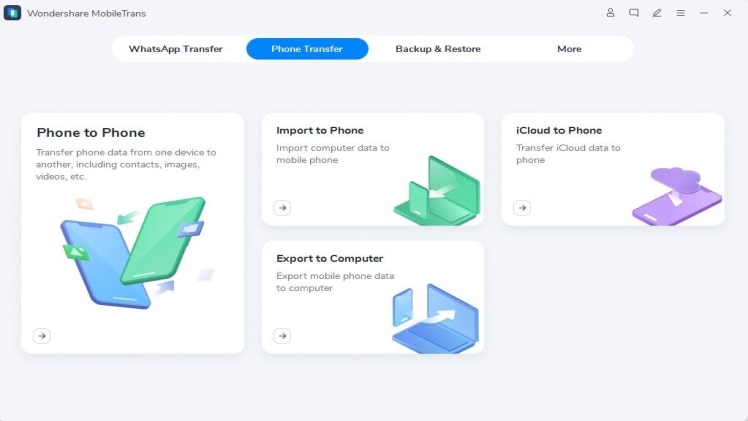
Step 1: Launch MobileTrans on Computer
Move to the official website in the first place and download the latest version. Then launch it to go to the homepage.
Step 2: Connect both devices to a computer
Make sure both the phones are connected to the PC. By clicking on the “Flip” button, you can change the source and destination phone.

Step 3: Select files types and Start transfer
Select the type of files you want for phone to phone transfer and click “Start”. Make sure both phones are connected throughout the transfer.
Note: Click on clear data before copying to erase existing data from the destination phone.
Following these steps will complete the transfer after a few minutes.

Part 2: Alternative Best Way to Transfer Data from Android to Android – MobileTrans App
MobileTrans app is just like the MobileTrans software. The major difference between both of them is that the MobileTrans app has to be downloaded on both the devices used for phone data transfer, unlike software. This app is considered to possess the best cross-platform transfer speed. It safely and seamlessly transfers all of your phone’s data, WhatsApp data from phone to phone without compromising quality.
Various features that the mobiletrans app have are:
- Scan QR code to attach devices
- No internet needed
- Supports different platforms
- Fastest data transfer speed
These steps may be used for the phone to phone transfer of knowledge using the mobiletrans app
Step 1: First, you need to opt for your devices as new or old.
Step 2: Now, connect your device by choosing the preferable method.
Step 3: Once connecting successfully, make sure to select the data you want to transfer.
Step 4: Just anticipate some seconds, you may get the “success” notice.
Part 3: Other Ways to Transfer Data from Android to Android
1. Bluetooth
Bluetooth is one of the oldest methods of the phone to phone data transfer. It is exactly a manual method and also slower than various methods available for the phone to phone transfer. But for transferring only a little part of data, Bluetooth can come in handy.
Bluetooth transmits data using special radio frequencies. It is an inbuilt phone functionality thus providing a clean user interface. All the data transferred via Bluetooth uses a secure connection as authorization of connection is mandatory.
The few limitations that phone data transfer via Bluetooth carries are:
- Slow transfer rate: the data transfer rate is significantly slow and can transfer data only at a speed of about 3 megabits per second.
- Distance limitations: The more objects that are in between the less the speed of transfer will be
- Interferences: if many devices are trying to use the same stretch of bandwidth it may interfere with the process.
Steps for using Bluetooth for the phone to phone data transfer:
Step 1: Connect Two Devices via Bluetooth
Turn on Bluetooth on both the Android devices and pair them.
Step 2: Share Files from the source device to the destination one
On your source device, open the files manager and select the files that you want to transfer. Click the “Share” button and choose “Bluetooth”. Go to the other device and allow the reception of files.
2. Samsung Smart Switch
The Samsung smart switch app is one of the best phones to phone data transfer apps. It allows Android users to transfer a wide range of data from their old devices to the new. With this, you can transfer data wirelessly. Furthermore, there is no need for a cable to use this.
The main feature of the Samsung smart switch is a wireless transfer, cross-platform, and external storage.
- Wireless transfer: without using any cable you can transfer all your data from one device to another.
- Cross-platform: data can be transferred between various android devices despite the platform they use.
- External Storage: phone to phone data transfer using external devices like an SD card is also possible.
There are also a few limitations regarding this data transfer they are:
- The app is only available to be installed in the USA.
- The destination phone can only be Samsung.
The detailed steps for transferring your data using a smart switch:
Step 1: Get the Smart Switch App on both devices
Go to the Play Store and download the Smart Switch app in both the source and destination device.
Step 2: Back up and reset the phone
Turn on the open smart switch setting on both your devices.
Step 3: Connect both devices with Smart Switch Mobile App
Open the Smart Switch app on both your devices and select the device type.
Select send icon on the source device and receive it on the destination device
Step 4: Transfer Data from the Source to the Destination Device
Select the type of data that you want to send and click send on the source device and agree to receive on the destination device.
Conclusion
Different methods can help you transfer data from Android to Android. Different methods can help you to transfer different apps or transfer phones data in any situation. The best way to transfer all your data would be the one that is safe, less time-consuming and that does all the data transfer at one go.
